My iPad Screen Stopped Responding Right in the Middle of Taking Notes
iPad screen not responding to touch during class? Clean the screen, remove the case and protector, force restart, update iPadOS, and know when repair is needed.
“Almost cried fixing my own house. Learned to read every quote instead.”
Theology · Scripture Cards
Open a scripture card
Already read and shared by 315 people.
 Hosanna to the Son of David
Matthew 21:9
The multitudes who went in front of him, and those who followed, kept shouting, “Hosanna to the son of David! Blessed is he who comes in…
Read this card
 Your Faith Has Made You Well
Mark 10:52
Jesus said to him, “Go your way. Your faith has made you well.” Immediately he received his sight and followed Jesus on the way.
Read this card
 This Is My Beloved Son
Matthew 3:16-17
Jesus, when he was baptized, went up directly from the water: and behold, the heavens were opened to him. He saw the Spirit of God…
Read this card
 Enter His Gates with Thanksgiving
Psalm 100:4-5
Enter into his gates with thanksgiving, and into his courts with praise. Give thanks to him, and bless his name. For Yahweh is good. His…
Read this card
 God Shut the Lions’ Mouths
Daniel 6:22
My God has sent his angel, and has shut the lions’ mouths, and they have not hurt me, because innocence was found in me before him; and…
Read this card
 Unto Us a Child Is Born
Isaiah 9:6
For a child is born to us. A son is given to us; and the government will be on his shoulders. His name will be called Wonderful Counselor…
Read this card
 Surely I Will Be with You
Judges 6:16
Yahweh said to him, “Surely I will be with you, and you shall strike the Midianites as one man.”
Read this card
 Let There Be Light
Genesis 1:3-4
God said, “Let there be light,” and there was light. God saw the light, and saw that it was good. God divided the light from the darkness.
Read this card
Key Takeaways
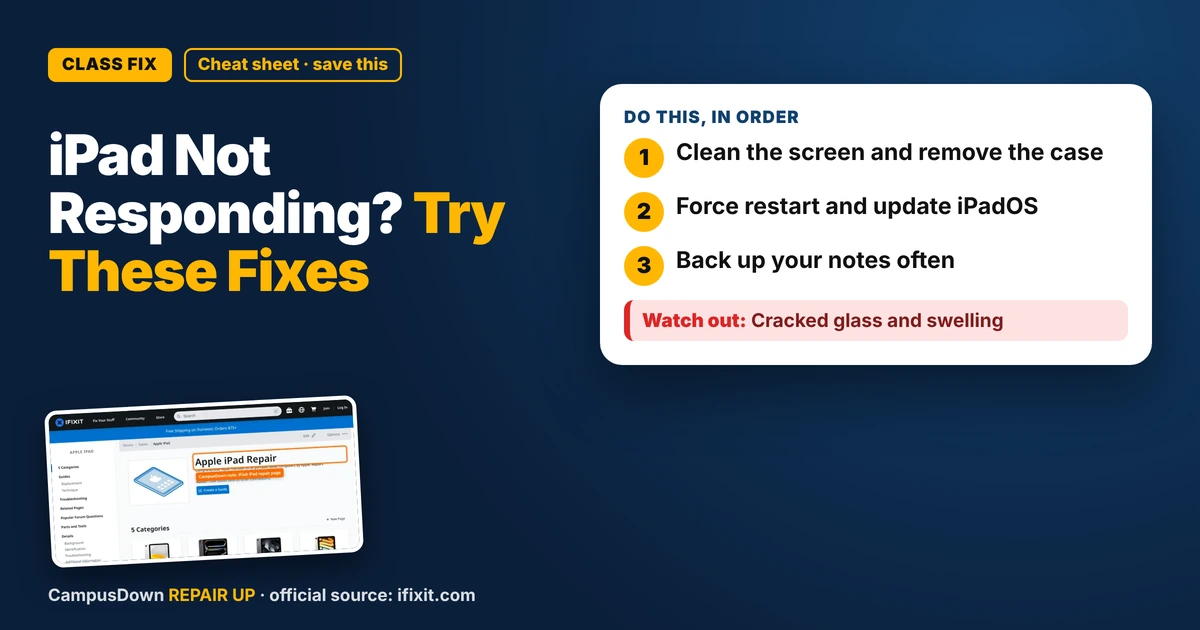
- Clean the screen and remove the case.
- Force restart and update iPadOS.
- Back up your notes often.
You're writing notes, the professor is speeding through slides, and suddenly your iPad ignores every tap. Or it only responds in some spots. If your iPad screen is not responding to touch during class, don't panic yet. Several fixes take less than a minute.
Quick fixes first
- Clean the screen.* Oil, lotion, or a sticky snack residue can confuse the touch. Use a soft, lint-free cloth, slightly damp with water if needed.
- Dry your hands.* Wet or very dry fingers can affect touch.
- Take off the case.* A tight or bent case can press on the screen edges.
- Check the screen protector.* Bubbles, cracks, or a thick protector can block touches in spots.
Force restart
A force restart often fixes frozen touch. The steps depend on your iPad model:
- iPads with a Home button:* Hold the top button and the Home button together until you see the Apple logo.
- iPads without a Home button:* Press and release volume up, press and release volume down, then hold the top button until the Apple logo appears.
Check Apple's official support steps for your model if you're unsure.
Update and check settings
- Update iPadOS* in Settings. Bugs that affect touch sometimes get fixed.
- Check Accessibility settings* like Touch Accommodations, which change how taps are handled.
- Free up storage.* A nearly full iPad can get sluggish.
Hardware problems
If parts of the screen never respond, the screen got cracked, or it was dropped or got wet, the touch layer may be damaged. iFixit's iPad page has repair guides by model, but iPad screen repairs can be difficult because of glued parts.
Why we freak out
Assuming the iPad is dead after one freeze is negativity bias. Never backing up because "nothing bad will happen" is optimism bias. And putting off cleaning the screen or swapping a cracked protector is the ostrich effect.
Backup note plan
- Keep a cheap paper notebook in your bag for emergencies.
- Use cloud sync for notes so they're not only on the device.
- Ask a classmate for notes and offer to share yours next time.
- Snap a photo of the slides if the professor allows it.
Where to get help
If the basic fixes don't work, contact Apple Support or an authorized service provider, and check if your iPad is under warranty or coverage. Your campus IT help desk might also be able to help diagnose it for free.
If this saved you a headache, it might save a friend one too.
Pick an app — it just sends the link, nothing else.
Frequently Asked Questions
Why is my iPad screen not responding to touch?
Dirt, a tight case, a bad screen protector, software glitches, or hardware damage can cause it.
How do I force restart an iPad?
The steps depend on whether your iPad has a Home button. Check Apple's support steps for your model.
Can a screen protector stop touch from working?
Yes, cracked, bubbled, or thick protectors can block touch in spots.
What if parts of my iPad screen never respond?
It could be hardware damage. Contact Apple Support or an authorized repair provider.