My Kindle Froze on Chapter 12 Right When It Got Good
Kindle Paperwhite frozen screen or stuck on one page? Do a long power-button restart, charge it, clear ghosting, and know when the screen itself is damaged.
“Almost cried fixing my own house. Learned to read every quote instead.”
Theology · Scripture Cards
Open a scripture card
Already read and shared by 315 people.
 Not My Will, but Yours
Luke 22:42
saying, “Father, if you are willing, remove this cup from me. Nevertheless, not my will, but yours, be done.”
Read this card
 A Fourth Walking in the Fire
Daniel 3:25
He answered, “Look, I see four men loose, walking in the middle of the fire, and they are unharmed. The appearance of the fourth is like a…
Read this card
 The Lord Will Provide
Genesis 22:14
Abraham called the name of that place “Yahweh Will Provide”. As it is said to this day, “On Yahweh’s mountain, it will be provided.”
Read this card
 Listen to Him
Matthew 17:5
While he was still speaking, behold, a bright cloud overshadowed them. Behold, a voice came out of the cloud, saying, “This is my beloved…
Read this card
 Salvation Is of the Lord
Jonah 2:6, 9
I went down to the bottoms of the mountains. The earth barred me in forever; yet you have brought my life up from the pit, Yahweh my God. ……
Read this card
 Your God, My God
Ruth 1:16
Ruth said, “Don’t urge me to leave you, and to return from following you, for where you go, I will go; and where you stay, I will stay.…
Read this card
 The Kingdom Belongs to Such as These
Mark 10:14, 16
But when Jesus saw it, he was moved with indignation and said to them, “Allow the little children to come to me! Don’t forbid them, for…
Read this card
 I Am the Light of the World
John 8:12
Again, therefore, Jesus spoke to them, saying, “I am the light of the world. He who follows me will not walk in the darkness, but will have…
Read this card
Key Takeaways
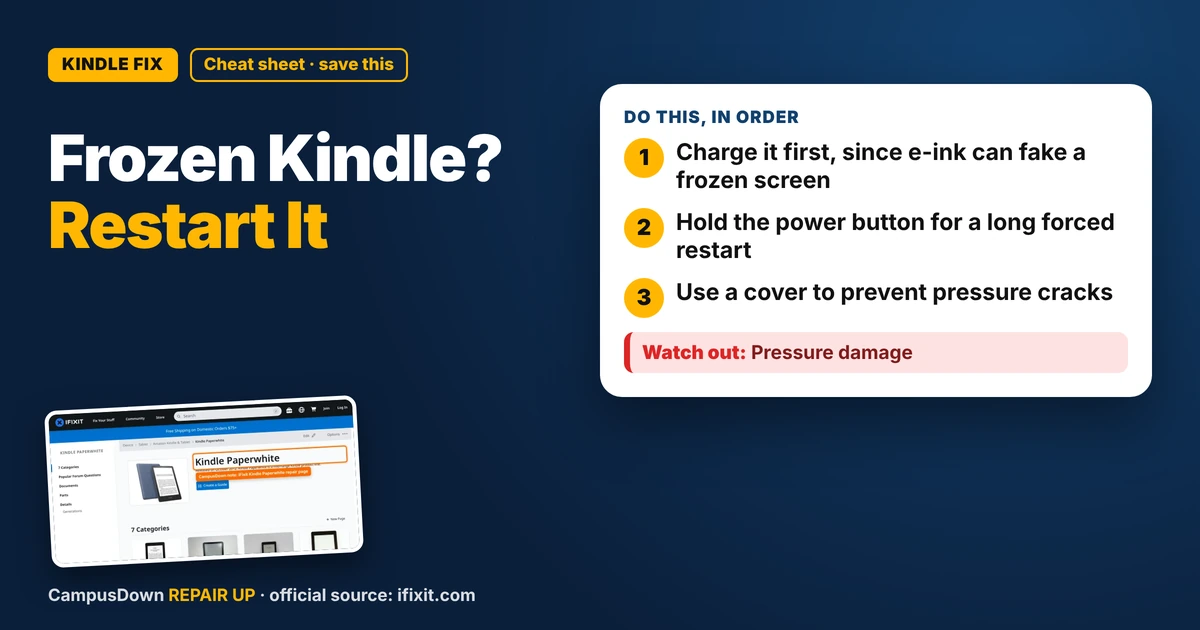
- Charge it first, since e-ink can fake a frozen screen.
- Hold the power button for a long forced restart.
- Use a cover to prevent pressure cracks.
My Kindle is how I read on a budget: library ebooks, free classics, and the occasional romance novel I won't admit to. Last night it froze mid-chapter. Taps did nothing, the page just stayed there like a screenshot. If your Kindle Paperwhite has a frozen screen, the fix is usually a forced restart. Here's how to do it and what to check if it keeps happening.
Why e-ink looks frozen even when off
E-ink screens keep showing the last image even with no power. So a "frozen" Kindle might actually be a dead battery. The screen just keeps displaying the last page or the sleep cover. That's the first thing to rule out.
Step 1: Charge it
- Plug it into a wall adapter with a cable you know works.
- Look for the charging light near the port.
- Leave it for a while, especially if the battery might be totally drained.
Step 2: Force restart
On most Kindles, hold the power button for a long press, often around 40 seconds, even if a menu pops up. Keep holding until the screen flashes or goes blank, then release. It should restart. Amazon's help pages list the exact steps for your model, so check if yours is different.
Step 3: Clear ghosting
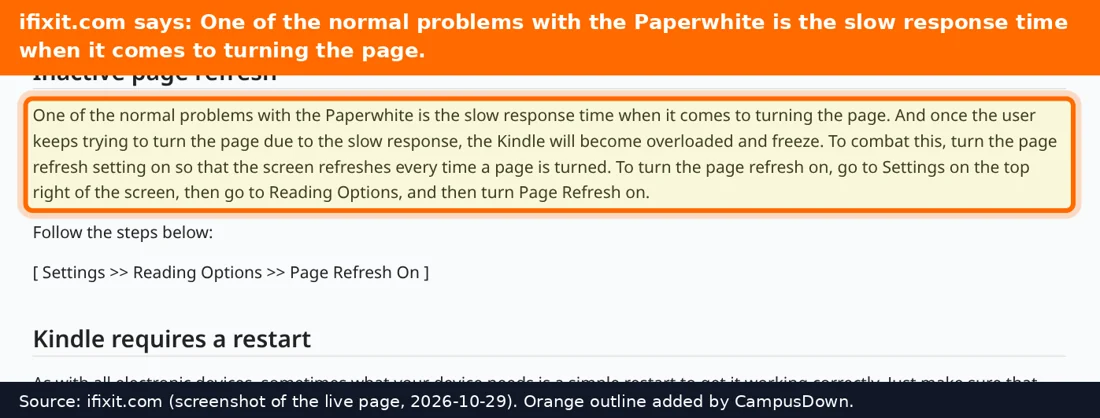
If you see faint traces of old pages, that's ghosting. Many Kindles have a page refresh setting that fully refreshes the screen every page turn. It uses a bit more battery but looks cleaner.
Step 4: Free up space and update
If the Kindle freezes often, check storage. Remove books you're done with and check for software updates in settings. Restarting every so often can help too.
When it's hardware
- Lines or dead patches that don't go away.
- Cracks in the screen.
- Touch not working in one area.
E-ink screens can crack from pressure, like being squished in a backpack. iFixit's Kindle Paperwhite page has repair guides, but screen replacements are fiddly. Check Amazon's warranty options first.
Why reading matters to us
Getting pulled out of a story is jarring because books make us feel things. The Zeigarnik effect means the unfinished chapter lives in your head. Assuming it's broken forever is negativity bias. And checking the battery first is Occam's razor.
Free reading on a student budget
While your Kindle restarts, a reminder: many public libraries lend ebooks you can send to a Kindle in the US. Your library card might cost nothing, and your campus library may have ebook access too. Ask a librarian how it works where you live. It's the best deal in town.
Keep it healthy
- Keep it away from heat and water.
- Restart it once in a while.
- Don't let the battery sit at zero for months.
- Use a cover in your bag.
Found this helpful? Share it with a friend who’s dealing with the same mess.
Pick an app — it just sends the link, nothing else.
Frequently Asked Questions
Why is my Kindle screen frozen?
It might be frozen software or a dead battery, since e-ink screens show the last image even with no power.
How do I force restart a Kindle Paperwhite?
Hold the power button for a long press until the screen flashes or goes blank. Check Amazon's help pages for your model.
Will restarting my Kindle delete my books?
No. A forced restart doesn't delete books. A factory reset does.
Can a Kindle screen be fixed?
Sometimes, but screen replacements are tricky. Check warranty options first.