My Laptop Sounded Like a Jet Engine During Finals. Here's How I Cooled It Down
Laptop overheating and loud fan right before a deadline? Check vents, find the app eating your CPU, clean dust safely, and spot battery warnings early.
“Almost cried fixing my own house. Learned to read every quote instead.”
Theology · Scripture Cards
Open a scripture card
Already read and shared by 315 people.
 Not My Will, but Yours
Luke 22:42
saying, “Father, if you are willing, remove this cup from me. Nevertheless, not my will, but yours, be done.”
Read this card
 Peace, Be Still
Mark 4:39, 41
He awoke and rebuked the wind, and said to the sea, “Peace! Be still!” The wind ceased and there was a great calm. … They were greatly…
Read this card
 God So Loved the World
John 3:16
For God so loved the world, that he gave his only born Son, that whoever believes in him should not perish, but have eternal life.
Read this card
 Until He Finds It
Luke 15:4, 6
“Which of you men, if you had one hundred sheep and lost one of them, wouldn’t leave the ninety-nine in the wilderness and go after the one…
Read this card
 He Revealed His Glory
John 2:11
This beginning of his signs Jesus did in Cana of Galilee, and revealed his glory; and his disciples believed in him.
Read this card
 Hosanna to the Son of David
Matthew 21:9
The multitudes who went in front of him, and those who followed, kept shouting, “Hosanna to the son of David! Blessed is he who comes in…
Read this card
 Surely I Will Be with You
Judges 6:16
Yahweh said to him, “Surely I will be with you, and you shall strike the Midianites as one man.”
Read this card
 The Lord Will Fight for You
Exodus 14:13-14
Moses said to the people, “Don’t be afraid. Stand still, and see the salvation of Yahweh, which he will work for you today; for you will…
Read this card
Key Takeaways
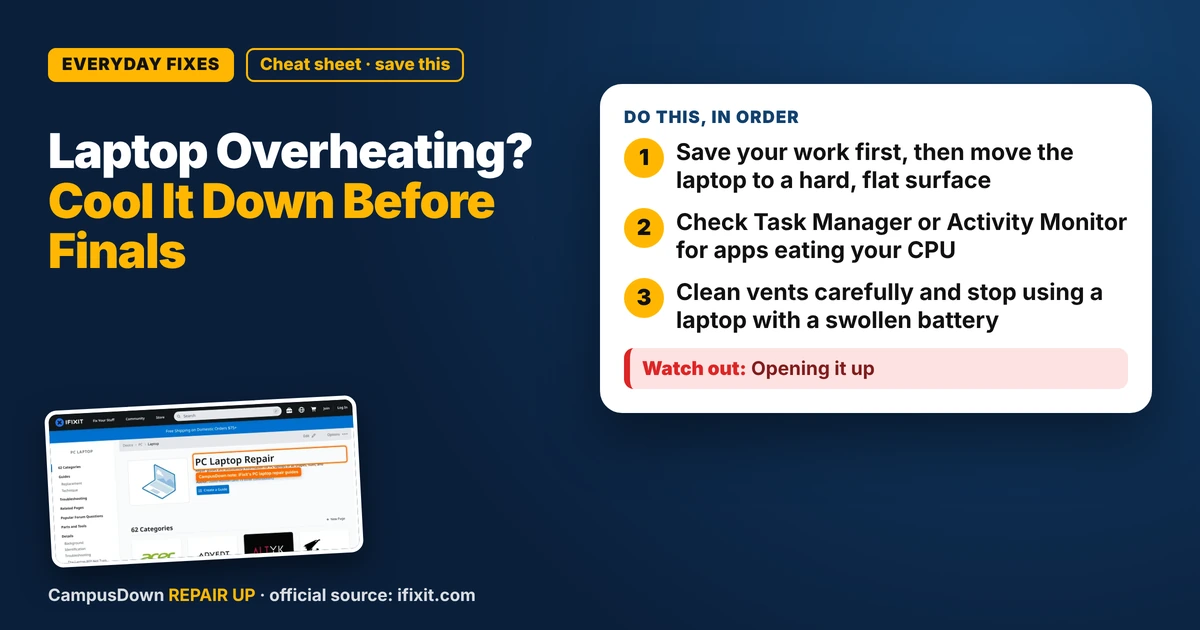
- Save your work first, then move the laptop to a hard, flat surface.
- Check Task Manager or Activity Monitor for apps eating your CPU.
- Clean vents carefully and stop using a laptop with a swollen battery.
11:40 p.m., paper due at midnight, and my laptop started roaring like it was about to take off from the library desk. The bottom was hot enough to make my legs sweat. If your laptop is overheating and the fan is loud, you're probably also panicking a little about losing your work. Let's fix the panic first, then the heat.
Right now: save and give it air
- Save your work* and back it up to the cloud or a USB stick. Seriously, first.
- Get it off soft surfaces.* Beds, blankets, couches and laps block the vents. A hard, flat table helps immediately.
- Close what you don't need.* Fifteen browser tabs, a game launcher and a video call in the background all add heat.
That's the quick version. Now let's figure out why it's happening.
Step 1: Find what's working the processor so hard
A loud fan means the laptop is trying to get rid of heat. Heat comes from work. On Windows, open Task Manager (Ctrl + Shift + Esc) and sort by CPU. On a Mac, open Activity Monitor and sort by % CPU. If one app is using a lot while you aren't actively using it, that's your suspect. Browser tabs with video, sync apps stuck on a huge folder, and updates running in the background are common ones.
It's heat transfer in a very small box: the processor makes heat, the fan pushes hot air out through the vents, and anything that blocks that flow makes everything hotter.
iFixit's PC laptop repair page has teardown and fan cleaning guides organized by brand and model. It's where I learned what the inside of my laptop actually looks like before deciding not to open it.
Step 2: Clean the vents (without opening anything)
Dust builds up in vents over time, especially in dorm rooms. Shut the laptop down and unplug it. Look at the vents on the sides, back or bottom. Use short bursts of compressed air from a few inches away. Don't flip the can upside down, since that can spray liquid. Some people gently hold the fan still through the vent with a toothpick so it doesn't over-spin, which iFixit guides also mention.
Step 3: Settings that reduce heat
- Use a balanced or battery-saving power mode when you don't need full speed.
- Lower screen brightness a bit.
- Keep your system and drivers updated; fixes sometimes include power improvements.
- Limit apps that launch at startup.
When it's more than heat
Some signs mean you should stop and get help:
- A swollen battery*: the case bulges, the trackpad lifts, or the laptop won't sit flat. Stop using it and get it checked. Swollen lithium batteries can be a fire risk.
- Burning smell*, random shutdowns, or the fan making grinding noises.
- Overheating even when idle*, after cleaning and closing apps.
Campus IT help desks often check student laptops for free or cheap. Check before paying for a repair shop.
There's a reason we ignore this until finals. The Yerkes-Dodson law says some stress helps performance, but too much tanks it, and a screaming laptop adds a lot of extra stress. Also, procrastination is how backups end up "next week" forever.
Found this helpful? Share it with a friend who’s dealing with the same mess.
Pick an app — it just sends the link, nothing else.
Frequently Asked Questions
Why is my laptop overheating and the fan so loud?
Usually because something is using a lot of processing power, the vents are blocked by a soft surface, or dust has built up inside. Check your task manager and clean the vents.
How do I clean laptop vents without opening it?
Shut it down, unplug it, and use short bursts of compressed air at the vents from a few inches away, keeping the can upright.
Is it bad to use a laptop on a bed?
Soft surfaces block the vents and trap heat. Use a hard surface or a tray when working in bed.
What does a swollen laptop battery look like?
The case may bulge, the trackpad may lift, or the laptop may wobble on a flat table. Stop using it and get it checked.