My Webcam Shows a Black Screen and My Online Class Starts in Five
Laptop webcam not working on your Zoom class? Check privacy shutters, app permissions, camera settings, and drivers before you assume the hardware is dead.
“Almost cried fixing my own house. Learned to read every quote instead.”
Theology · Scripture Cards
Open a scripture card
Already read and shared by 315 people.
 The New Covenant in My Blood
Luke 22:19-20
He took bread, and when he had given thanks, he broke and gave it to them, saying, “This is my body which is given for you. Do this in…
Read this card
 Twelve Baskets Left Over
John 6:11, 13
Jesus took the loaves, and having given thanks, he distributed to the disciples, and the disciples to those who were sitting down, likewise…
Read this card
 This Is My Beloved Son
Matthew 3:16-17
Jesus, when he was baptized, went up directly from the water: and behold, the heavens were opened to him. He saw the Spirit of God…
Read this card
 The Rainbow Covenant
Genesis 9:13, 16
I set my rainbow in the cloud, and it will be a sign of a covenant between me and the earth. … The rainbow will be in the cloud. I will…
Read this card
 The Lord, He Is God
1 Kings 18:38-39
Then Yahweh’s fire fell and consumed the burnt offering, the wood, the stones, and the dust; and it licked up the water that was in the…
Read this card
 Surely I Will Be with You
Judges 6:16
Yahweh said to him, “Surely I will be with you, and you shall strike the Midianites as one man.”
Read this card
 Your God, My God
Ruth 1:16
Ruth said, “Don’t urge me to leave you, and to return from following you, for where you go, I will go; and where you stay, I will stay.…
Read this card
 God Shut the Lions’ Mouths
Daniel 6:22
My God has sent his angel, and has shut the lions’ mouths, and they have not hurt me, because innocence was found in me before him; and…
Read this card
Key Takeaways
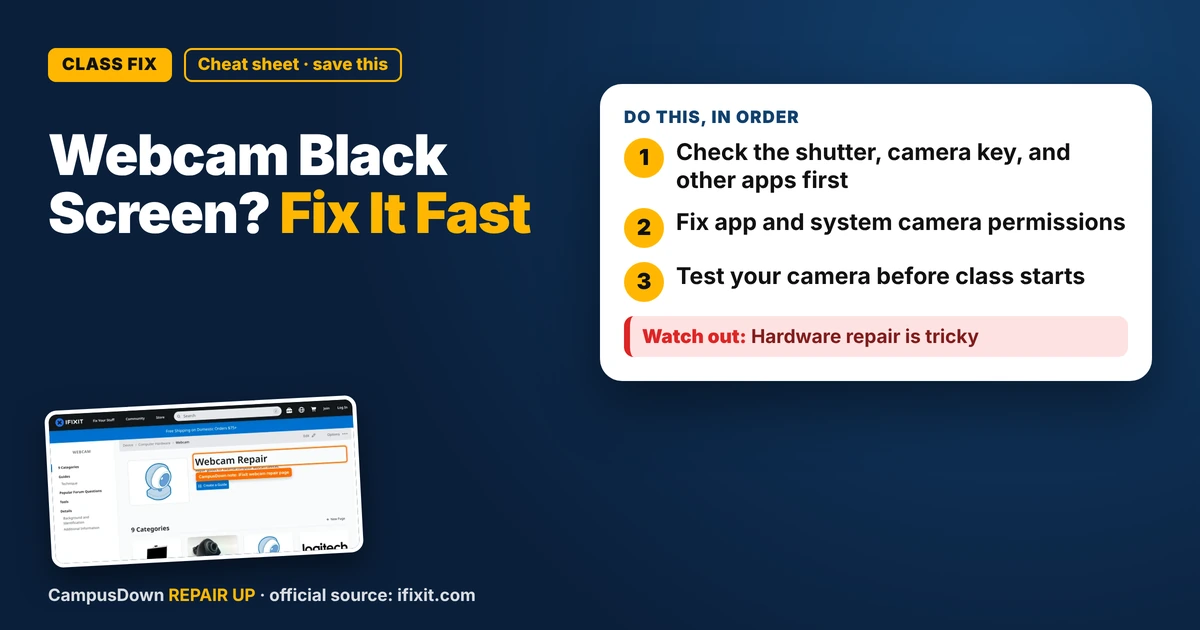
- Check the shutter, camera key, and other apps first.
- Fix app and system camera permissions.
- Test your camera before class starts.
The class link is open, your hair is semi-fixed, and the camera preview is just a black box. If your laptop webcam is not working on a Zoom class, don't start Googling new laptops yet. Most of the time it's a setting, not a broken camera.
Check the obvious stuff first
- Privacy shutter.* Many laptops have a tiny slider over the camera. It's easy to forget it's closed.
- Keyboard camera key.* Some laptops have a function key that turns the camera on and off. Look for a camera icon on the F keys.
- Another app using the camera.* Only one app can usually use the camera at a time. Close other video apps and browser tabs.
- Restart the laptop.* Annoying, but it fixes a surprising number of camera glitches.
Check the app settings
In your video app's settings, look at the video or camera section:
- Make sure the right camera is selected. If you've ever plugged in an external webcam, the app might be looking for that one.
- Turn off any virtual camera or background effects to test.
- Try the camera in another app, like the built-in camera app, to see if the problem is the app or the laptop.
Check computer privacy permissions
- Windows:* Go to Settings, then Privacy and security, then Camera. Make sure camera access is on and the app is allowed.
- Mac:* Go to System Settings, then Privacy and Security, then Camera. Make sure the app is checked.
- Browser classes:* If class runs in a browser, check the site's camera permission in the address bar.
Drivers and updates
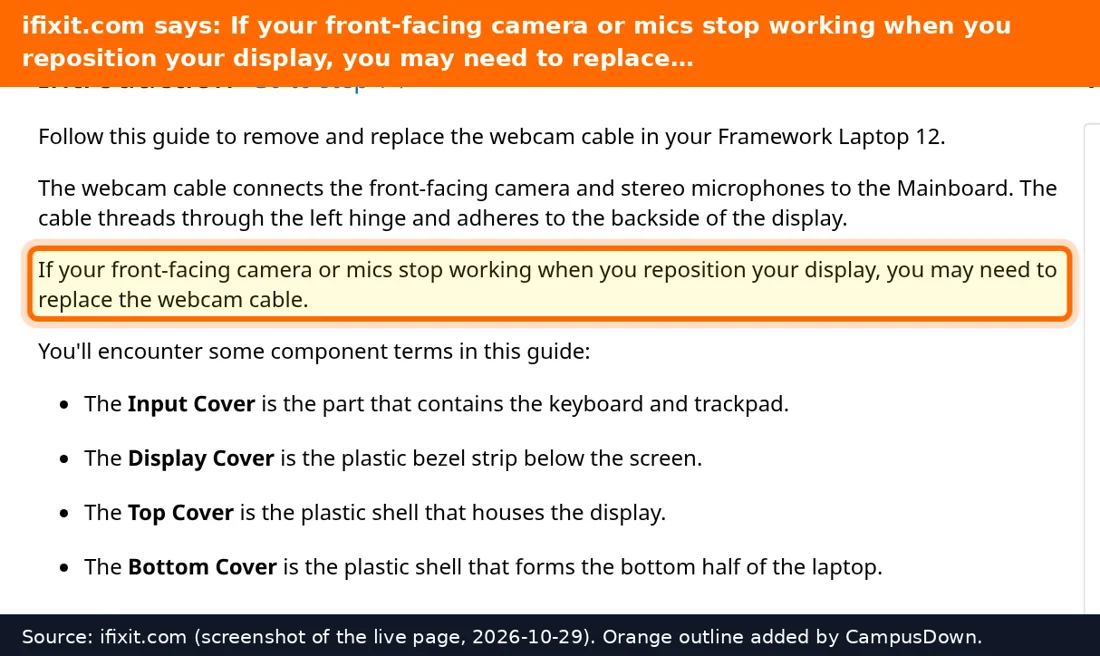
On Windows, Device Manager can show if the camera has a driver problem. Updating the system or reinstalling the camera driver sometimes fixes it. On a Mac, a system update is usually the move. iFixit's webcam page has troubleshooting and repair guides if it seems like a hardware problem.
Why we panic
Jumping straight to "the camera is broken" is the availability heuristic: we remember the dramatic failures, not the simple fixes. Freaking out that everyone noticed your black square is the spotlight effect. And putting off the camera test until the last second is procrastination, the student classic.
Backup plans for class
- Join from your phone with the camera on while you troubleshoot the laptop.
- Message your instructor quickly that you're having camera trouble. Short and honest works.
- Borrow a cheap USB webcam from a friend or check if your campus library loans them.
- Use the campus IT help desk, it's usually free for students.
Make your setup better for free
- Sit facing a window or lamp, not with the light behind you.
- Raise the laptop on a stack of books so the camera is closer to eye level.
- Wipe the camera lens with a soft cloth. Smudges make everything look foggy.
Found this helpful? Share it with a friend who’s dealing with the same mess.
Pick an app — it just sends the link, nothing else.
Frequently Asked Questions
Why does my laptop webcam show a black screen?
Common causes are a closed privacy shutter, a camera key turned off, another app using the camera, or app permissions.
How do I give Zoom permission to use my camera?
Check your computer's privacy settings for camera access and make sure the app is allowed.
What if my camera isn't detected at all?
Restart, update the system, and check drivers. If it still isn't found, contact campus IT or a repair shop.
Can I join class without a working laptop camera?
Join from your phone or use a USB webcam while you fix it, and let your instructor know.