My Steam Deck Stayed Dead on the Charger the Night Before a Trip
Steam Deck won't charge or turn on? Check the charger and cable, clear the port, try the power button hold, and know when to contact support for a repair.
“Almost cried fixing my own house. Learned to read every quote instead.”
Theology · Scripture Cards
Open a scripture card
Already read and shared by 315 people.
 Salvation Is of the Lord
Jonah 2:6, 9
I went down to the bottoms of the mountains. The earth barred me in forever; yet you have brought my life up from the pit, Yahweh my God. ……
Read this card
 Peace, Be Still
Mark 4:39, 41
He awoke and rebuked the wind, and said to the sea, “Peace! Be still!” The wind ceased and there was a great calm. … They were greatly…
Read this card
 While He Was Still a Long Way Off
Luke 15:20, 22
“He arose and came to his father. But while he was still far off, his father saw him and was moved with compassion, and ran, fell on his…
Read this card
 The New Covenant in My Blood
Luke 22:19-20
He took bread, and when he had given thanks, he broke and gave it to them, saying, “This is my body which is given for you. Do this in…
Read this card
 He Revealed His Glory
John 2:11
This beginning of his signs Jesus did in Cana of Galilee, and revealed his glory; and his disciples believed in him.
Read this card
 I Am the Light of the World
John 8:12
Again, therefore, Jesus spoke to them, saying, “I am the light of the world. He who follows me will not walk in the darkness, but will have…
Read this card
 The Lord Is My Shepherd
Psalm 23:1, 4
Yahweh is my shepherd; I shall lack nothing. … Even though I walk through the valley of the shadow of death, I will fear no evil, for you…
Read this card
 I Know That My Redeemer Lives
Job 19:25
But as for me, I know that my Redeemer lives. In the end, he will stand upon the earth.
Read this card
Key Takeaways
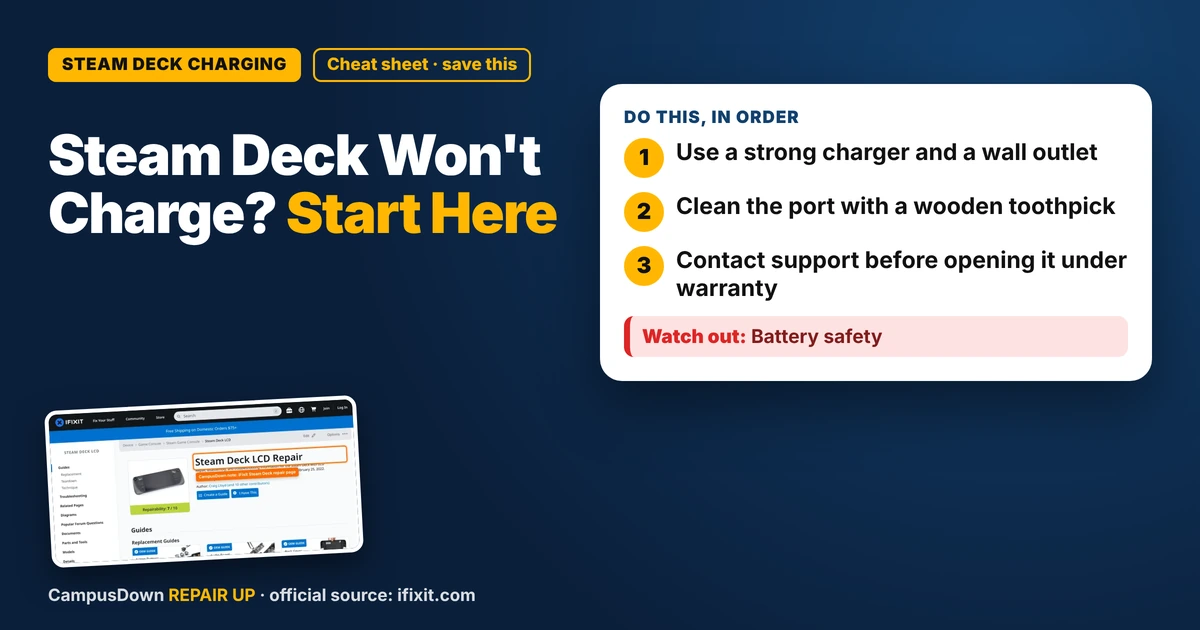
- Use a strong charger and a wall outlet.
- Clean the port with a wooden toothpick.
- Contact support before opening it under warranty.
My Steam Deck is basically my entertainment budget for the semester. So when I plugged it in before a long bus ride home and got nothing, no light, no screen, my heart dropped. If your Steam Deck won't charge, start with the charger and port, then try a power reset before assuming the worst.
Step 1: Check the charger
- Use the charger that came with it, or another one that supports the power the Deck needs.
- Plug it into a wall outlet, not a laptop or a weak power strip.
- Look at the charging LED near the port. Does it light up at all?
- Try a different USB-C cable if you have one rated for higher power.
Leave it plugged in for a while. A deeply drained battery can take some time before it shows signs of life.
Step 2: Clean the port
Lint and dust build up in USB-C ports, especially if you toss your Deck in a backpack.
- Turn the Deck off.
- Shine a light into the port.
- Gently remove lint with a wooden toothpick. Never use metal.
Step 3: Try a power reset
Hold the power button for a longer press to force a shutdown or restart, then try charging again. Valve's support pages list the exact button steps for different situations, so check them if a long press doesn't work.
Step 4: Know when to get help
If it still won't charge:
- The port might be damaged.
- The battery might be failing.
- There could be a board issue.
iFixit's Steam Deck page has detailed repair guides, and the Deck is known for being more repair-friendly than many handhelds. Still, if it's under warranty, contact Valve support first. Opening it yourself might affect your options.
Why this always happens before a trip
We only notice charging problems when we need the device most. That's availability heuristic: we remember the failures at bad moments. Assuming a weird charging light is fine is optimism bias. And trying the simplest thing first, the cable, is Occam's razor.
Trip-proof your Deck
- Charge it the night before, not the morning of.
- Pack the charger in your carry bag, not checked luggage.
- Bring a backup entertainment option, like downloaded shows on your phone.
- Keep the port clean with a case.
Battery habits that help
Heat is hard on batteries. Don't leave the Deck in a hot car or charge it under a blanket. Give it room to breathe when gaming plugged in. If you play docked a lot, check the settings for battery-related options that might help with long-term health.
If this saved you a headache, it might save a friend one too.
Pick an app — it just sends the link, nothing else.
Frequently Asked Questions
Why won't my Steam Deck charge?
Common causes are a weak charger or cable, a dirty port, a drained battery, or a hardware issue.
How do I reset a Steam Deck that won't turn on?
Try a long press of the power button and check Valve's support pages for your situation.
Can I clean my Steam Deck charging port?
Yes, carefully with a wooden toothpick while the device is off.
Should I repair my Steam Deck myself?
If it's under warranty, contact Valve support first. Otherwise repair guides exist, but go slow.