My USB Drive Won't Show Up and My Whole Project Is On It
USB flash drive not showing up with your assignment on it? Try other ports and computers, check Disk Management or Disk Utility, and avoid steps that wipe it.
“Almost cried fixing my own house. Learned to read every quote instead.”
Theology · Scripture Cards
Open a scripture card
Already read and shared by 315 people.
 The Kingdom Belongs to Such as These
Mark 10:14, 16
But when Jesus saw it, he was moved with indignation and said to them, “Allow the little children to come to me! Don’t forbid them, for…
Read this card
 Peace, Be Still
Mark 4:39, 41
He awoke and rebuked the wind, and said to the sea, “Peace! Be still!” The wind ceased and there was a great calm. … They were greatly…
Read this card
 Daughter, Your Faith Has Healed You
Mark 5:34
He said to her, “Daughter, your faith has made you well. Go in peace, and be cured of your disease.”
Read this card
 Your Faith Has Made You Well
Mark 10:52
Jesus said to him, “Go your way. Your faith has made you well.” Immediately he received his sight and followed Jesus on the way.
Read this card
 Listen to Him
Matthew 17:5
While he was still speaking, behold, a bright cloud overshadowed them. Behold, a voice came out of the cloud, saying, “This is my beloved…
Read this card
 I Am the Light of the World
John 8:12
Again, therefore, Jesus spoke to them, saying, “I am the light of the world. He who follows me will not walk in the darkness, but will have…
Read this card
 The Lord Will Fight for You
Exodus 14:13-14
Moses said to the people, “Don’t be afraid. Stand still, and see the salvation of Yahweh, which he will work for you today; for you will…
Read this card
 In the Name of the Lord
1 Samuel 17:45, 47
Then David said to the Philistine, “You come to me with a sword, with a spear, and with a javelin; but I come to you in the name of Yahweh…
Read this card
Key Takeaways
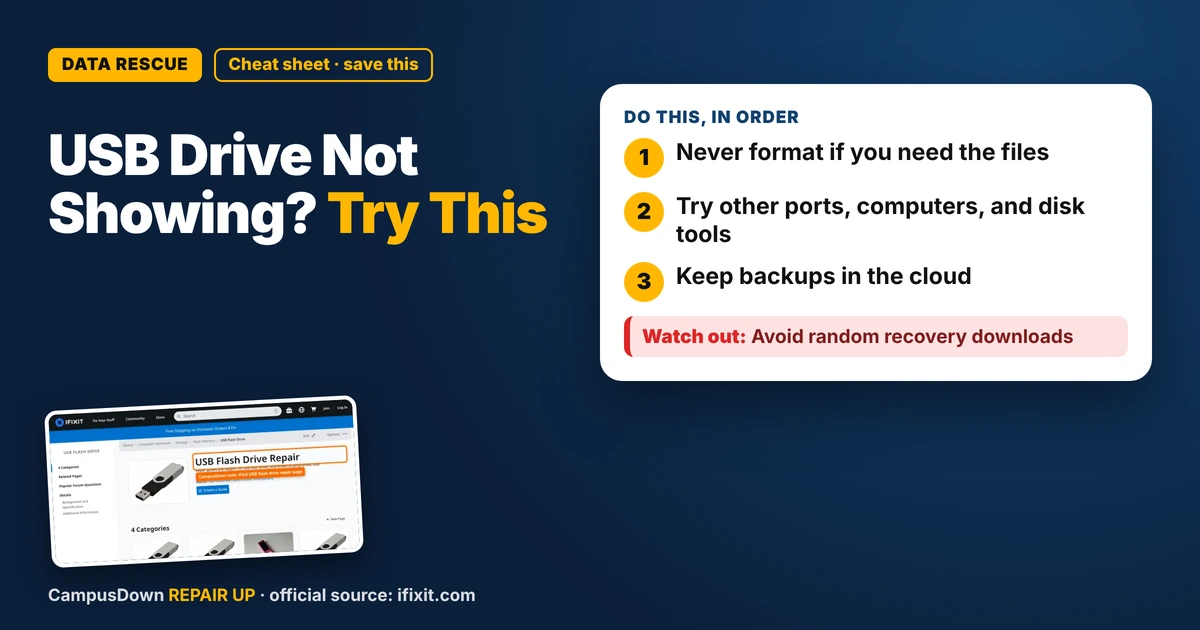
- Never format if you need the files.
- Try other ports, computers, and disk tools.
- Keep backups in the cloud.
It's the night before the deadline. You plug in the little drive with your entire project on it, and the computer acts like nothing happened. No pop-up, no icon, no sound. If your USB flash drive is not showing up and your assignment is on it, slow down. The wrong click can make things worse, so we go gentle first.
Rule number one: don't format
If a pop-up says the drive needs to be formatted, don't click format if you need the files. Formatting can erase what's on there. Close the message and keep troubleshooting.
Step 1: The easy checks
- Try a different USB port.* Ports on the back of a desktop are often more reliable than front ones.
- Skip the hub or adapter.* Plug it straight into the computer if you can. Cheap dongles cause a lot of drama.
- Try another computer.* A library or lab computer is perfect for this test.
- Look at the connector.* Bent metal, dust, or a wobbly plug are red flags.
- Restart the computer* and try again.
Step 2: See if the computer detects it at all
- Windows:* Right-click Start and open Disk Management. If the drive shows up there without a letter, you may be able to assign a drive letter. Don't choose anything that says format or delete.
- Mac:* Open Disk Utility. If the drive shows but isn't mounted, try the Mount button.
If it shows up in these tools, there's a decent chance your files are still there.
Step 3: When it's still not detected
If no computer sees it at all, the drive's hardware may be damaged. iFixit's USB flash drive page has repair info, but flash drive repairs often involve tiny solder points. That's not a beginner fix the night before a deadline.
Other options:
- Campus IT help desk.* Often free for students, and they've seen this a hundred times.
- Professional data recovery.* Can work for physically damaged drives, but it can be pricey. Get a quote first.
Talk to your professor early
If you might miss the deadline, send a short, honest email before it's due. Explain what happened and what you've tried. Asking early beats explaining late.
Why we put everything on one stick
Trusting one tiny drive because it's always worked is optimism bias. Putting off backups is just procrastination wearing a hoodie. And freezing up instead of trying fixes is a little normalcy bias: your brain refuses to believe the bad thing is happening.
A backup routine for broke students
- Save your work to a free cloud storage account from your school or a major provider.
- Email yourself big drafts as attachments at milestones.
- Keep at least two copies: one on your computer, one in the cloud.
- Use the USB drive only to move files, not as the only home for them.
- Eject the drive properly before pulling it out.
Taking care of flash drives
- Don't keep them loose in a pocket with keys.
- Keep them away from water and heat.
- Use a cap or a keychain so the connector isn't bent.
- Replace very old or cheap drives that act flaky.
Found this helpful? Share it with a friend who’s dealing with the same mess.
Pick an app — it just sends the link, nothing else.
Frequently Asked Questions
Why is my USB flash drive not showing up?
It could be a bad port, a hub, a missing drive letter, a damaged connector, or a failing drive.
Should I format a USB drive that says it needs formatting?
Not if you need the files. Formatting can erase them. Try other fixes or get help first.
Can campus IT help recover files from a USB drive?
Many campus IT desks help students with drive problems. Ask them.
How do I keep from losing assignments on a USB drive?
Keep copies in cloud storage and on your computer, not only on the drive.